Live Activities Without the App Shuffle
2026-10-11
Live Activities beat app-hopping. When a supported app tracks your flight, delivery or another ongoing event, its updates can appear on the Lock Screen and, on compatible iPhones, in the Dynamic Island. Timers work here too. CarPlay can bring supported activities onto your dashboard, provided your software supports the feature.
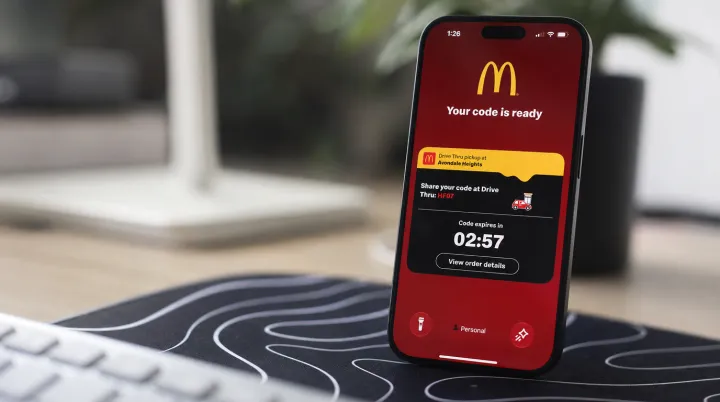
The switches deserve attention. Open Settings, select Face ID & Passcode or Touch ID & Passcode, enter your passcode, then enable Live Activities under Allow Access When Locked. Check individual apps too. In Settings, open Apps, choose a supported app and turn on Live Activities if that option appears. Start something worth tracking. Depending on the app, you may need to begin a timer, place an order or select a flight before an activity appears; enabling permission alone does not create one. Keep expectations in check. On an iPhone with Dynamic Island, touch and hold an activity to expand it, or tap it to open its app.
CarPlay needs its own check. On your iPhone, open Settings, General, CarPlay, select your vehicle, and look for Live Activities controls, including Show Live Activities where available. Missing controls mean troubleshooting first. Confirm that your iPhone software supports CarPlay Live Activities, and remember that app support determines which events appear. Automatic expansion is optional. If your settings offer Auto-Expand Live Activities, choose whether updates should expand automatically rather than assuming every dashboard needs more movement. Set this while parked. You want a delivery estimate within sight, not another reason to fiddle with a screen while driving, right?
Loading...

